
How do I allow or disallow announcement replies in a course?
Open Announcements
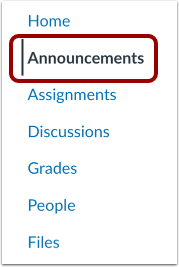
In Course Navigation, click the Announcements link.
Add Announcement

To add an announcement, click the Add Announcement button.
Allow Comments
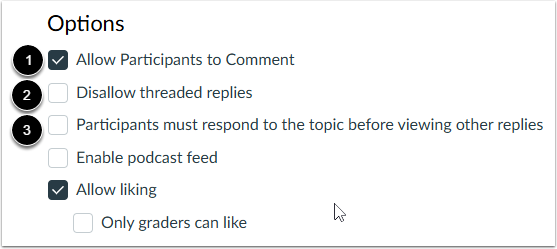
In the Options section, you can select various options for your announcement.
To allow other users to reply to the announcement, click the Allow Participants to Comment checkbox [1].
To prevent users from replying to replies, click the Disallow threaded replies checkbox [2].
To require students to reply to the discussion before they can see any other replies, click the Participants must respond to the topic before viewing other replies checkbox [3].
Notes:
- By default, replies are not allowed in announcements unless the Allow Participants to Comment checkbox is selected.
- The Allow Participants to Comment option is persistent, meaning the option you select when creating or editing an announcement will carry over when you create a new announcement in the course.
- Comment and threaded reply options will not be available to you if announcement comments are disabled in your course. Check your Course Settingsif you cannot view these checkboxes.
Publish Announcement

Click the Publish button.
Close in Announcements Page
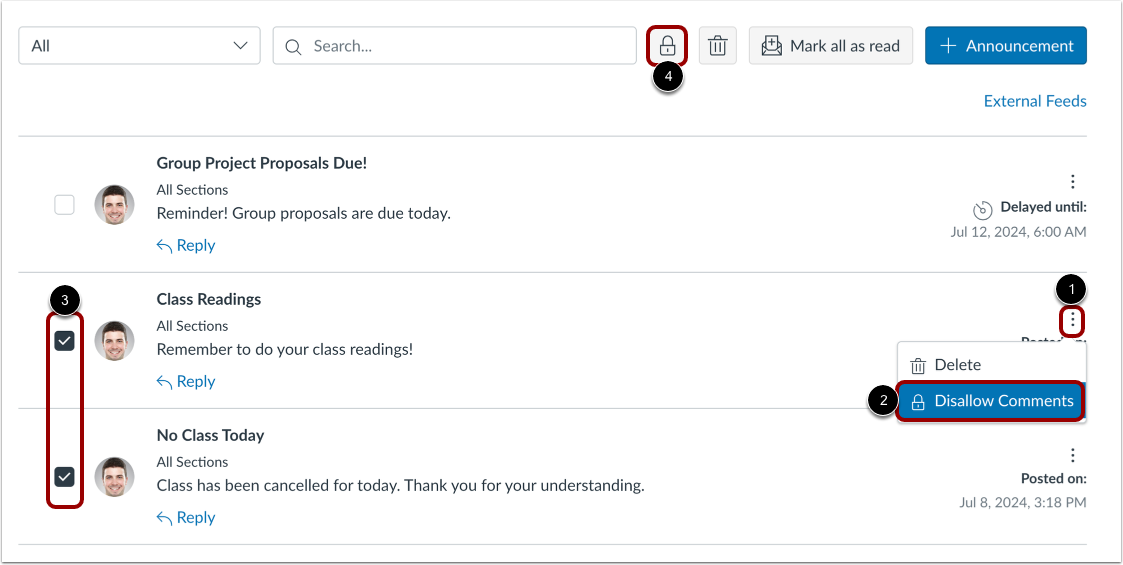
To close an announcement for comments from the index page, locate the announcement. Click the Options icon [1] and click the Disallow Comments link [2].
To close more than one announcement for comments from the index page, click the checkbox next to each announcement [3] and click the Lock Reply button [4].
Open for Comments
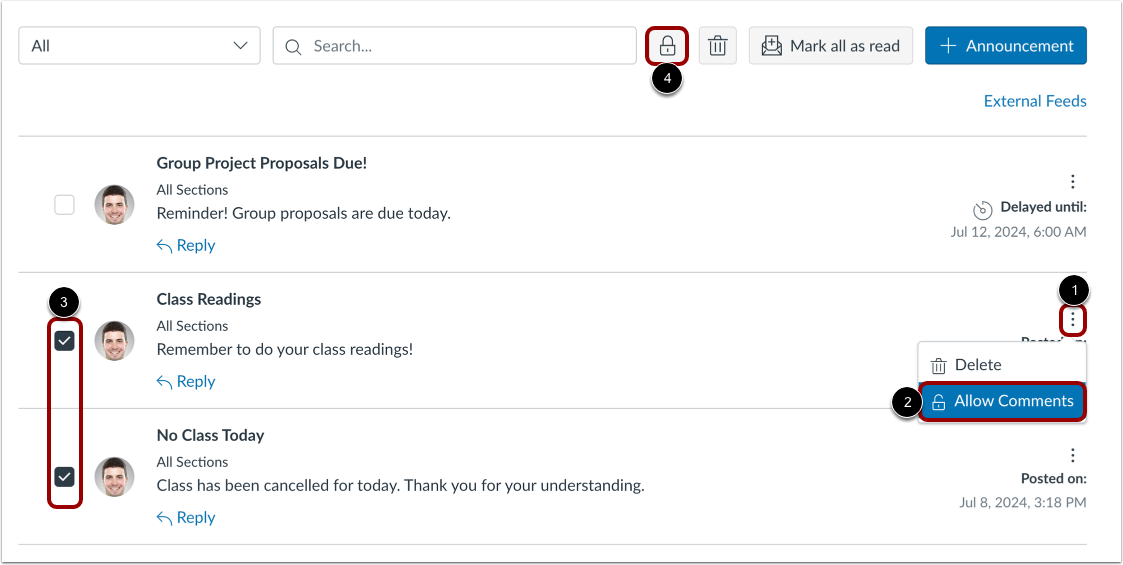
To open an announcement for comments, locate the announcement and click the Options icon [1], then click the Allow Comments link [2].
To open more than one announcement for comments from the index page, click the checkbox next to each announcement [3] and click the Lock Reply button [4].
Infomation presented in this guide is from The Instructure Community Product Resources.